On this page
Key takeaways
- Start with a floor plan and device inventory before choosing switches, access points or cameras.
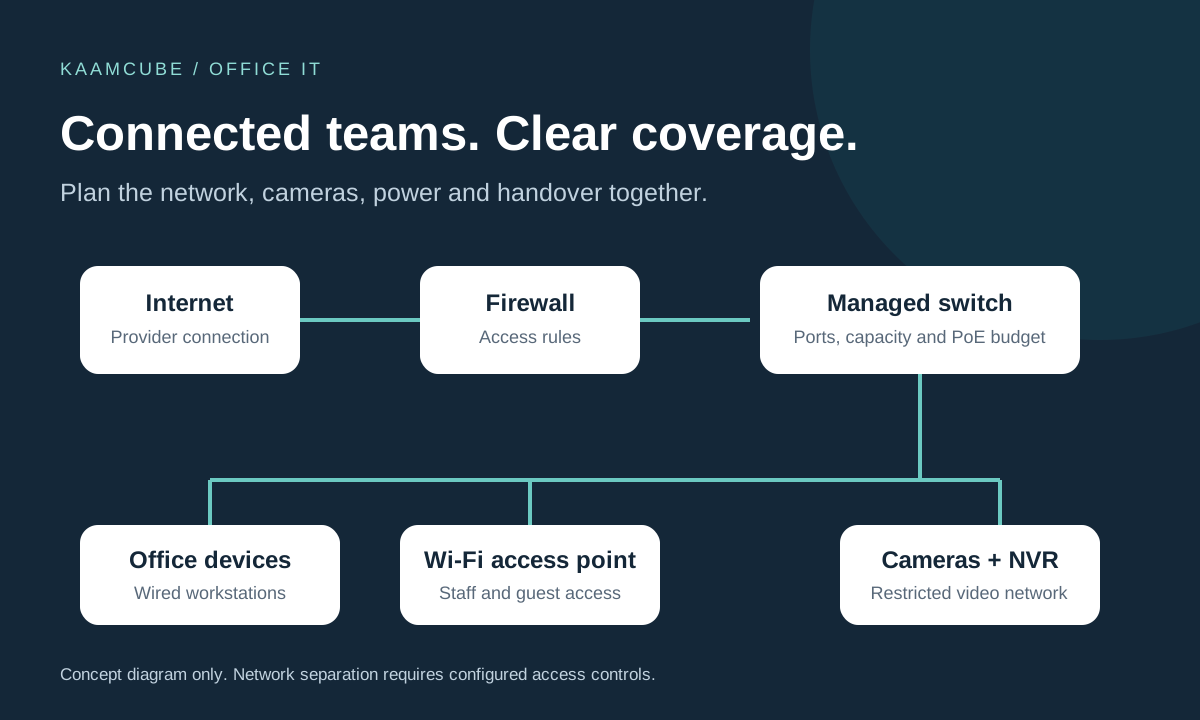
- Separate guest access and surveillance traffic from business systems using configured network controls.
- Agree camera views, recording requirements, access permissions and handover tests before installation.
A useful office IT setup supports the work people do every day: video meetings, shared applications, printing and access to reliable recordings when an incident needs review. Planning networking and CCTV together helps you account for cable routes, switch capacity, power and maintenance from the start.
Whether you are opening a Gurugram office, moving to a larger floor or improving an existing setup, use this guide to prepare your requirements. Equipment quantities and models should follow a site assessment rather than a generic package.
Networking: design before devices
Map users, devices and business tasks
Mark workstations, meeting rooms, reception, printers and equipment areas on a floor plan. Count the devices that may connect at the same time, including phones, laptops, cameras and visitors. Record which applications need stable connectivity and whether the office has plans to add desks or departments.
Include the internet handover point, proposed rack position and available cable routes. Walls, glass partitions and furniture can affect wireless coverage, so access-point placement needs assessment in the actual space.
Build an organised wired network
Choose cabling, switches and uplinks against the required speeds, distances and installation conditions. Use labelled outlets and patch-panel ports, with a port schedule that connects each desk or device to the rack. Agree how installed links will be tested and what results will be handed over.
Allow capacity for growth and check the total power budget where switches will power access points or cameras over Ethernet. A switch with spare ports may still lack enough available power for the intended devices.
Plan Wi-Fi for use, not just signal bars
Check coverage in meeting rooms, busy work areas and other places where staff actually use wireless devices. Test with representative applications and an expected device load. A connection that works beside the access point may behave differently in a full meeting room.
Keep guest access separate from internal systems. A different Wi-Fi name alone does not establish isolation: VLANs and firewall or access-control rules need to be configured and tested. Cisco's multi-SSID configuration guide illustrates the use of separate private and guest VLANs.
CCTV: coverage with purpose
Define the question each camera should help answer. Do you need to see that someone entered a room, identify a person at an entrance or review movement around stock? The required view determines placement, lens choice, lighting and recording quality.
| Area | Planning question | Acceptance check |
|---|---|---|
| Entrances and exits | What detail must be visible as people pass? | Test movement, backlighting and the installed viewing angle. |
| Reception and dispatch | Which customer or handover activity needs review? | Check that counters and relevant movement are not obstructed. |
| Equipment and stock | Which access points or assets need coverage? | Review blind spots with doors open and in normal working conditions. |
| After-hours areas | Will the view remain useful when lighting changes? | Inspect recorded footage under the expected low-light conditions. |
Review the proposed views with the people responsible for the premises. Avoid capturing private spaces or unnecessary neighbouring areas. Confirm internal privacy responsibilities, access permissions and any site-specific requirements before installation.
For an existing system, first inspect the cameras, cable condition and recorder compatibility. An IP-camera and NVR design may suit a new network installation, while an upgrade may retain compatible equipment. Choose after checking image quality, recording features, support and expansion requirements.
Recording storage and access
Choose a retention period that reflects the organisation's purpose and applicable requirements. There is no single duration that this guide can prescribe for every office. Document when footage is overwritten and how an incident recording is preserved when needed.
Size storage using camera count, recording bitrate, recording hours and the required number of days. Resolution, frame rate, compression and scene activity affect the recording load. Allow for usable disk capacity and storage overhead, then confirm the estimate against the selected equipment. Axis explains these dependencies in its video surveillance storage guidance.
- Recording access: assign named users and limit who can view, export or change recordings.
- System protection: replace default credentials, manage updates and restrict access to cameras and the recorder.
- Remote viewing: agree an authenticated access method and its support requirements; avoid exposing recorder management ports directly to the internet.
- Physical protection: secure the recorder and network equipment against casual access, damage or removal.
- Evidence checks: verify timestamps, playback and export rather than relying only on a live camera view.
Power, testing and handover
List which devices must keep working during a power interruption: the internet terminal, firewall, core switches, access points, cameras and recorder may all matter. Size backup power against the connected load and required runtime, then check recovery after a controlled interruption.
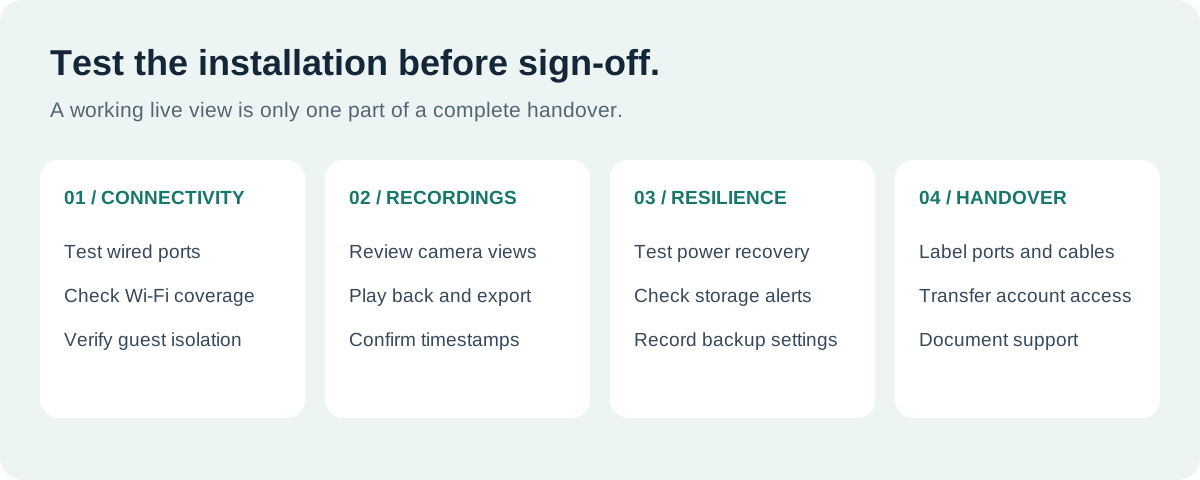
- Test connectivity: check installed ports, representative applications, Wi-Fi coverage and guest isolation.
- Test recordings: inspect every view, confirm timestamps and demonstrate playback and export with an authorised user.
- Check resilience: review power recovery, storage health and any configured failure alerts.
- Transfer documentation: collect the device inventory, port labels, network diagram, configuration backups and warranty details.
- Confirm ownership: transfer business account access securely and document the process for adding or removing users.
Budgeting and ongoing maintenance
Ask for an itemised proposal covering cable quantities, outlets, rack work, switches, access points, cameras, recording storage, backup power, installation and testing. Confirm any civil work, internet-provider changes, licences or recurring services separately.
For maintenance, define who monitors equipment, checks recording health, applies updates and responds to faults. Clarify whether replacement parts, site visits, configuration changes and additional devices are included. Keep expansion work separate from routine support so approvals are straightforward.
Kaamcube provides networking and CCTV services covering structured cabling, Wi-Fi, IP cameras, NVRs and maintenance. For a wider office requirement, explore our office IT setup and AMC case study, or share your floor plan and request a site survey.
Frequently asked questions
How many Wi-Fi access points does an office need?
The number depends on layout, building materials, device density and the applications people use. Assess the site and test the proposed coverage rather than choosing only by floor area.
Can cameras share the office network?
They can use shared network infrastructure when capacity, power and access controls are designed appropriately. Restrict surveillance access and test the intended separation from staff and guest systems.
How long should CCTV footage be kept?
Agree a retention period based on the recording purpose and applicable organisational or site requirements. Size storage for the selected settings and document how incident recordings are preserved.
Should we replace our DVR with an NVR?
Review the existing cameras, cabling, image quality and compatibility first. Compare the cost and practical benefit of retaining, adapting or replacing equipment against your recording and expansion needs.
What should we receive after installation?
Request test results, device and port records, account access, configuration backups, warranty information and support contacts. Demonstrate playback, export and recovery before sign-off.
How do we arrange a site survey?
Contact Kaamcube with the office location, floor plan, approximate device count and any existing network or camera issues. The survey helps establish scope and prepare a proposal.